License & API Key Setup
Follow these simple steps to activate your Yuxor license and get your API key.
Register or Log In
Go to yuxor.dev and create your account. If you already have an account, simply log in to continue.

Open Your Profile
Once logged in, click on your profile icon in the bottom-left corner of the screen to access your account settings.


Enter Your License Code
Navigate to the License tab in your profile and paste the license code you received. Your license will be activated instantly.
Get Your API Key
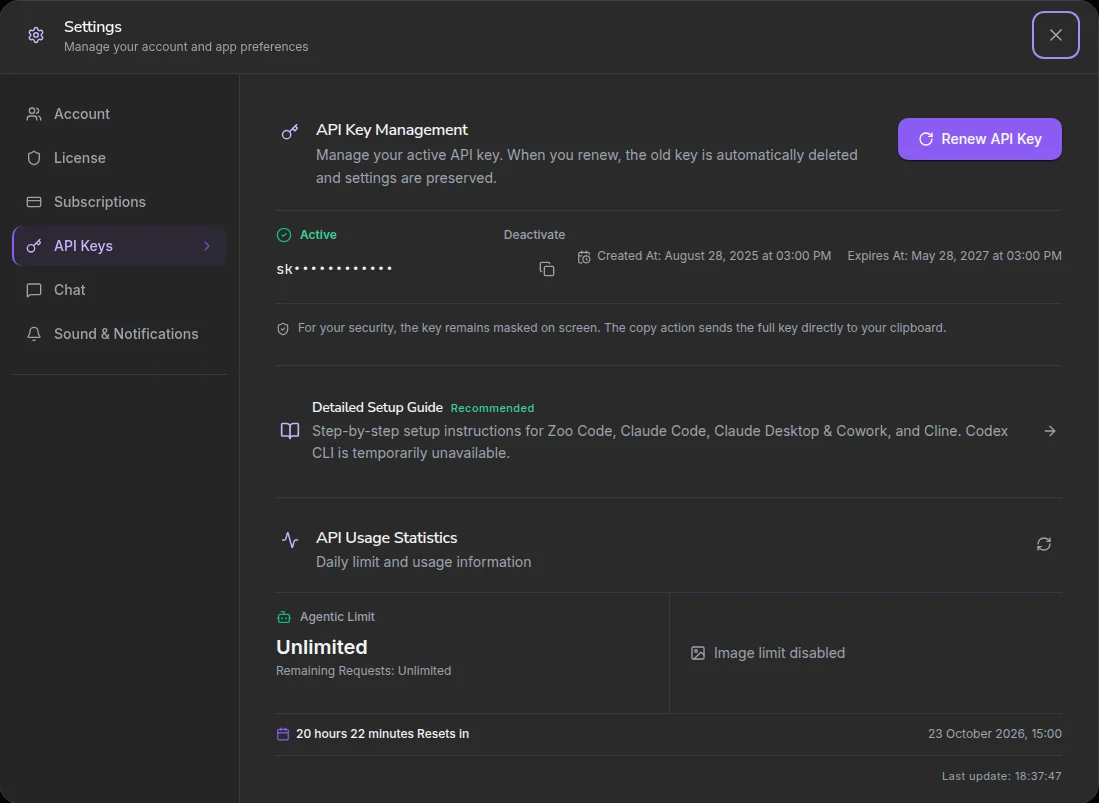
After activating your license, go to the API Keys section in your profile. Create a new key or copy your existing one — you'll need it to connect your tools.
Loading image...
Need More Help?
Visit our detailed API setup documentation for step-by-step instructions on connecting Zoo Code, Claude Code, and more. Codex CLI is temporarily unavailable.
Open API DocumentationGood to Know
A few things to keep in mind when setting up your license.
Keep It Secret
Never share your license code or API key publicly. Treat them like passwords — they grant access to your account.
Instant Activation
Your license activates immediately after entering the code. No waiting period — start using AI models right away.
Works Everywhere
Your API key is compatible with all major tools: Zoo Code, Cline, Claude Code, Kilo Code, and more. Codex CLI is temporarily unavailable.
Follow the API Setup Guide
After activating your license, some settings are entered differently depending on the tool you connect. We recommend following the API setup guide step by step for the correct configuration.